How to hide the Dock on a Mac for good
Auto-hide only hides the Dock until your pointer touches the bottom of the screen. Here’s how to keep it out of the way for good, how to undo it, and what you lose.

macOS can hide the Dock, but only halfway: it slides back up every time the pointer touches the bottom of the screen. If you click a tab, a scroll bar or a button near the bottom edge, the Dock gets in the way. Here’s how to make it stay hidden, how to undo it, and what you give up.
Step 1: turn on auto-hide
Open System Settings → Desktop & Dock and turn on Automatically hide and show the Dock. Or press ⌥⌘D, which toggles it from anywhere.
That’s enough for many people. The Dock is gone until the pointer reaches the bottom edge, then it slides up after a short pause.
Step 2: make it wait (almost) forever
The pause before the Dock appears is a setting with no switch in System Settings, but you can change it in Terminal. Set it to 1000 seconds and the Dock, in practice, never comes back:
defaults write com.apple.dock autohide -bool true
defaults write com.apple.dock autohide-delay -float 1000
killall Dock
The first line turns on auto-hide, the second sets the delay, and the third restarts the Dock so it takes effect. Only the Dock’s own preferences change.
How to undo it
To get the normal behaviour back, remove the delay and restart the Dock:
defaults delete com.apple.dock autohide-delay
killall Dock
Then turn auto-hide off in System Settings (or with ⌥⌘D) if you want the Dock visible all the time again.
If you only want the Dock to appear faster rather than never, use a small delay instead, like 0 or 0.2 seconds.
What you lose
With the Dock gone, so is everything you did with it:
- switching apps with the mouse;
- opening apps you’ve pinned but aren’t running;
- an app’s right-click menu (its windows, New Window, Quit);
- minimized windows, which still go to the Dock you can’t see;
- folders like Downloads, and the Trash;
- dropping a file on an app to open it there.
⌘Tab and Spotlight cover some of it from the keyboard. If you mostly use the mouse, you need something else.
Or let Beckon do it
Beckon brings the Dock to the pointer instead: hold ⌥Space or press the middle mouse button, and your apps appear in a ring around it. Your pinned apps, folders and the Trash are on the ring; right-click an app for the Dock’s menu; reach an app to see its windows, minimized ones included.
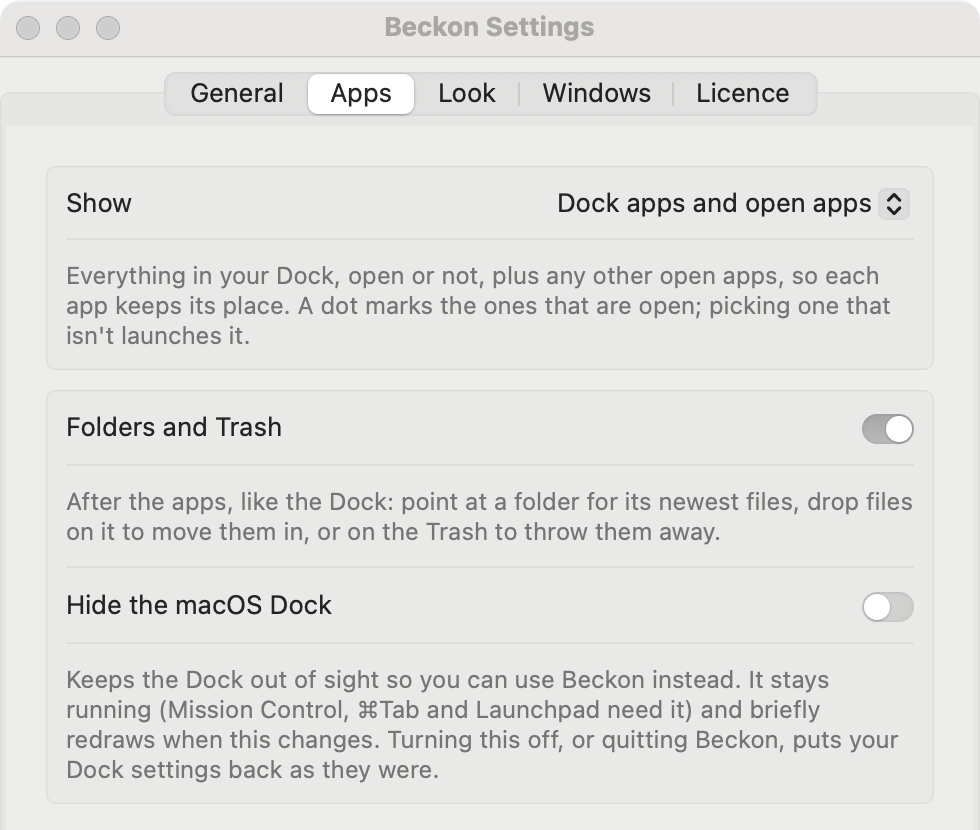
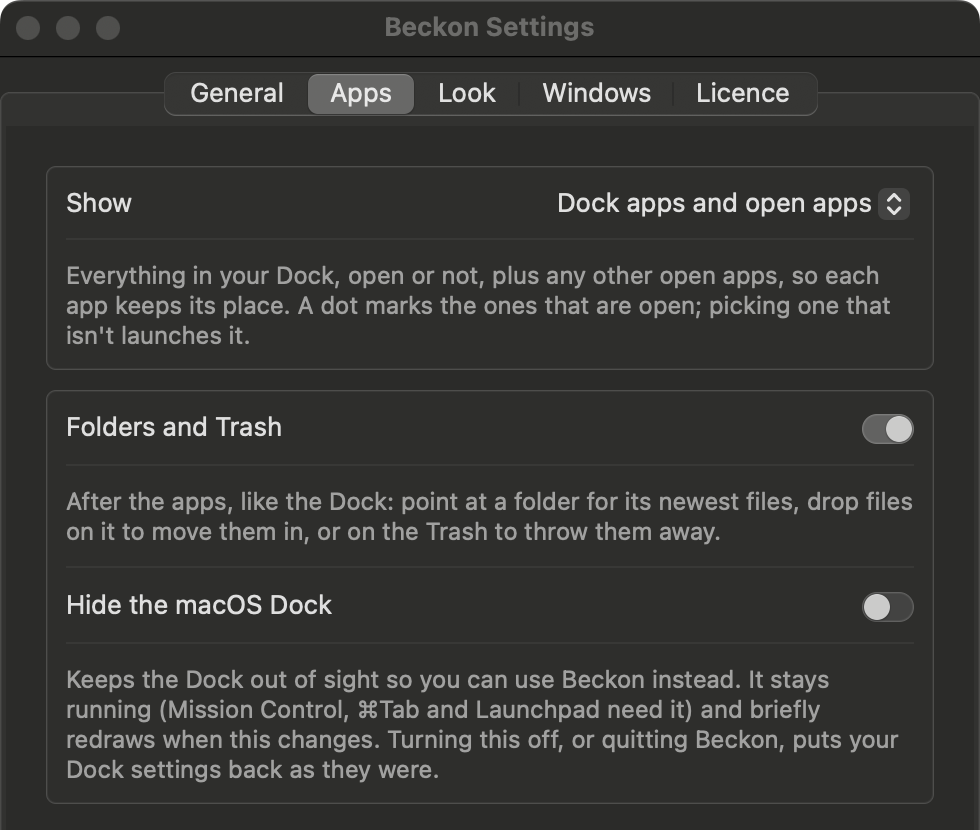
Then Settings → Apps → Hide the macOS Dock does exactly what’s above: auto-hide with a 1000-second delay. The difference is that Beckon remembers how your Dock was set up, and puts it back exactly as it was when you turn the switch off or quit Beckon, so there’s nothing to remember or type.
Hiding the Dock is part of Beckon Pro, which is $19 once at launch (then $24). Every download starts with 14 days of Pro to try it.