How to switch apps on a Mac without the keyboard
Every way to switch apps on a Mac with just the mouse or trackpad: the Dock, Mission Control, hot corners, mouse buttons, gestures, and a ring at the pointer.

Most advice about switching apps on a Mac starts with ⌘Tab. That’s fine when your hands are on the keyboard. But a lot of work happens with one hand on the mouse: reviewing designs, reading, editing photos, clicking through a product. Reaching over to the keyboard to switch apps, then back, is a trip of its own.
Here’s every way I know to switch apps on a Mac without letting go of the mouse or trackpad.
The Dock
The default: move to the bottom of the screen and click an icon. Right-click an icon to pick one of that app’s windows. It works, but on a large display it’s the longest trip the pointer makes, and the icons are small targets.
Mission Control and App Exposé
Mission Control spreads out every open window so you can click one. App Exposé does the same for one app’s windows. On a trackpad, swipe up with three or four fingers for Mission Control, and down for App Exposé (turn them on in System Settings → Trackpad → More Gestures). On a Magic Mouse, double-tap with two fingers for Mission Control.
Hot corners
In System Settings → Desktop & Dock → Hot Corners, you can make a corner of the screen open Mission Control or App Exposé when the pointer reaches it. Corners are easy to hit, since the pointer stops there, but they’re still a trip to the edge, and easy to trigger by accident.
Mouse buttons
If your mouse has extra buttons, System Settings → Desktop & Dock → Shortcuts… lets you give Mission Control, Application windows or Show Desktop to one of them. Mouse makers’ own apps can map buttons to more, including ⌘Tab.
Full-screen swipes
If you keep apps full screen, swiping left or right with three or four fingers moves between them. Quick for two or three apps side by side; it gets slow once you have more, since you go through them in order.
A ring at the pointer
None of these is as quick as ⌘Tab, because they all either go to the edge of the screen or show you everything at once. That’s the gap I built Beckon for.
Press the middle mouse button (or hold ⌥Space, or a shortcut of your own), and your apps appear in a ring around the pointer, wherever it is. Move toward an app and let go. Only the direction counts, so a short flick does it, and the apps keep their places, so your hand learns them.
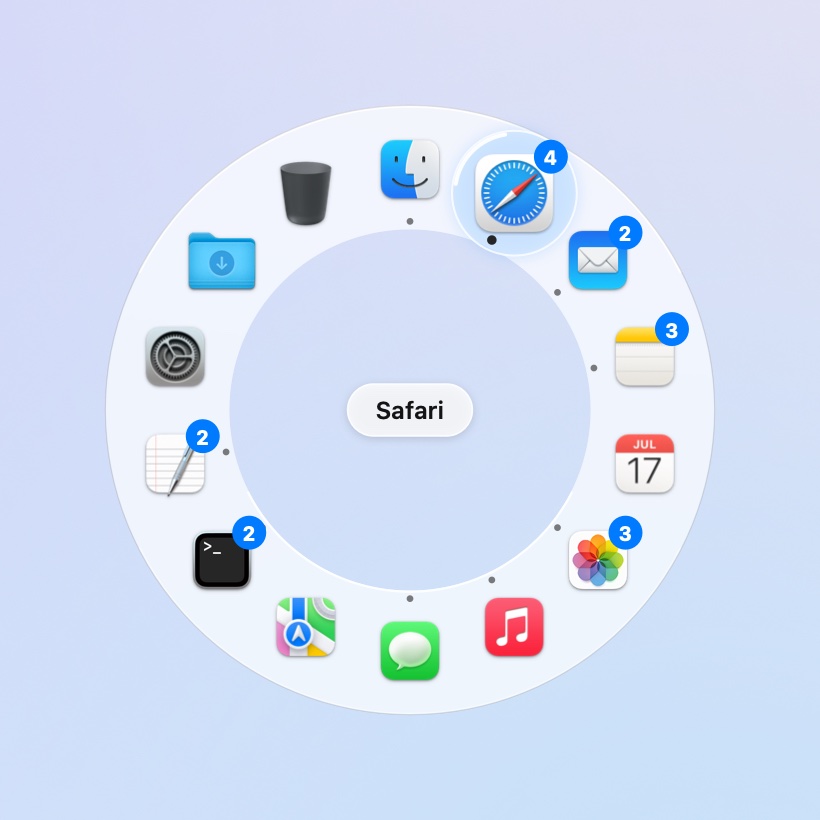
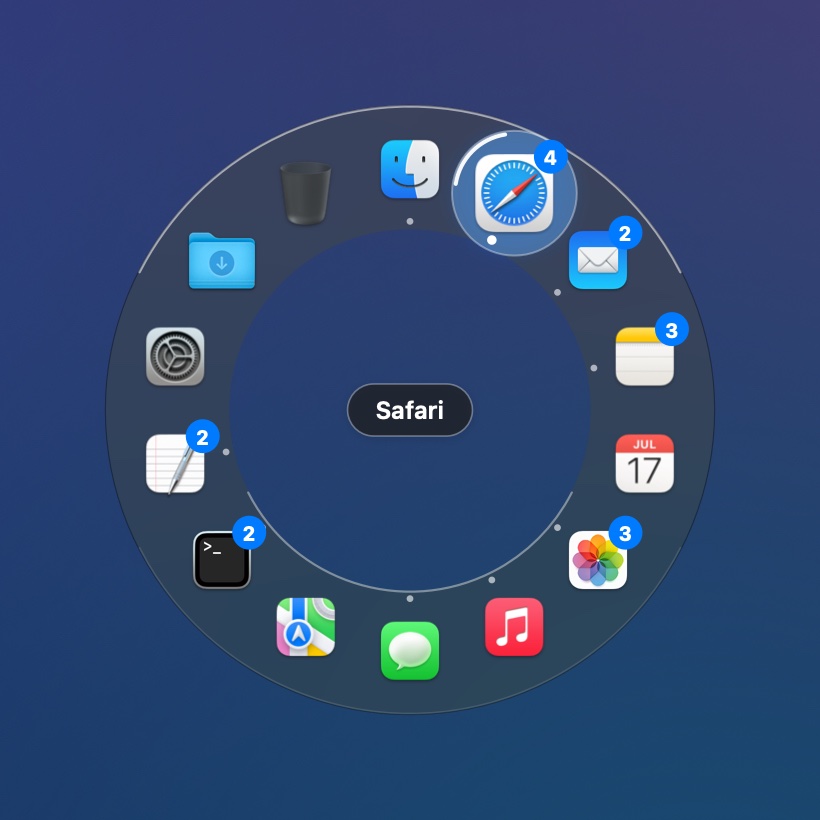
- Hold, flick, let go for speed; tap to keep the ring open and click.
- No middle button? Use the keyboard shortcut with your other hand, or a mouse button mapped to it.
- Windows: reach an app and its windows fan out with thumbnails, so you land on the exact one; the pointer moves to it.
- Right-click an app in the ring for the Dock’s menu: its windows, New Window, Hide, Quit.
Switching between your open apps with the ring is free for good. Pro, which adds windows, pinned apps, folders and hiding the Dock, is $19 once at launch (then $24), with 14 days of it free on every download.