

Beckon never sends your windows, their titles or thumbnails anywhere. Thumbnails are kept in
memory only. See the privacy policy.
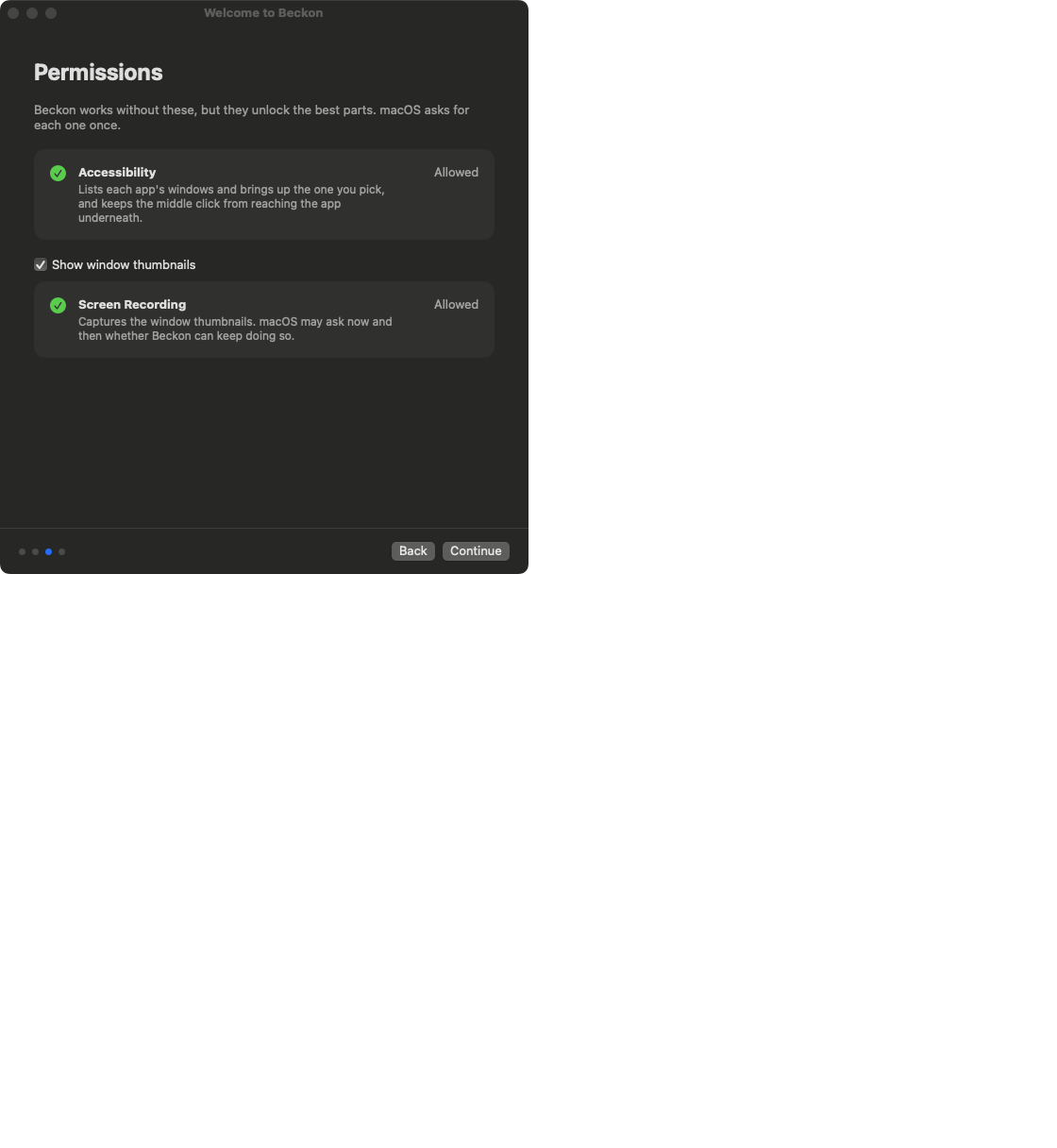
Allow them
1
Open System Settings → Privacy & Security
Then Accessibility or Screen & System Audio Recording (called Screen Recording on
older macOS).
2
Turn Beckon on
If Beckon isn’t in the list, click + and choose it from Applications.
3
For Screen Recording, quit and reopen Beckon
macOS only applies it after a restart. The welcome guide has a Restart Beckon button
that does this and brings you back to the same step.
macOS may ask now and then whether Beckon can keep recording your screen. That’s macOS
checking in on every app that captures the screen. Allow it to keep thumbnails.
If a permission is on but doesn’t work
Sometimes, after an update, System Settings shows Beckon as allowed but it behaves as if it isn’t. Remove it and add it again, once:- In System Settings → Privacy & Security → Accessibility (or Screen Recording), select Beckon and click −.
- Click +, choose Beckon from Applications, and turn it on.
- Quit and reopen Beckon.