

Everything on this page is in Beckon Pro, and in your 14-day trial. Without Pro the ring
shows your open apps.
Which apps the ring shows
Choose in Settings → Apps → Show:
Beckon’s own pinned list
Pick Beckon’s pinned apps and open apps and a Pinned list appears in Settings → Apps:- Add… to add an app or a folder.
- Import from Dock to start from your Dock’s apps. (Choosing this option with an empty list starts from the Dock too.)
- Drag to reorder; the first item sits at 12 o’clock and the rest go clockwise.
Folders and the Trash
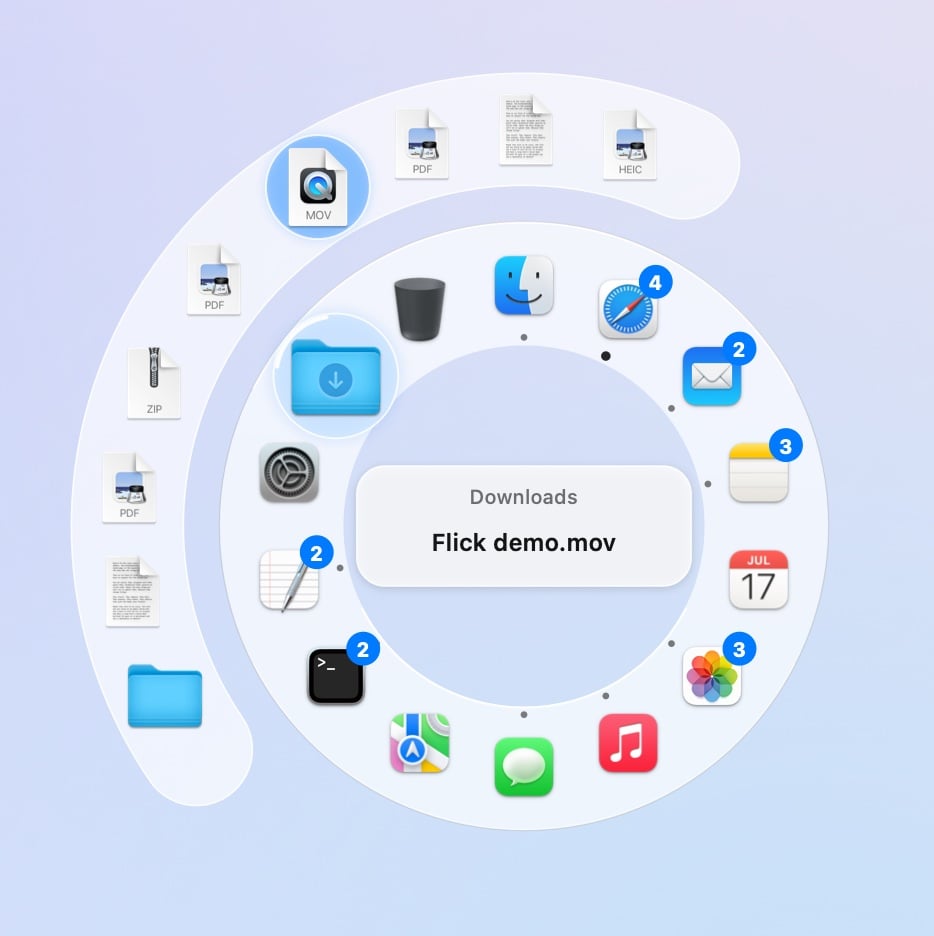
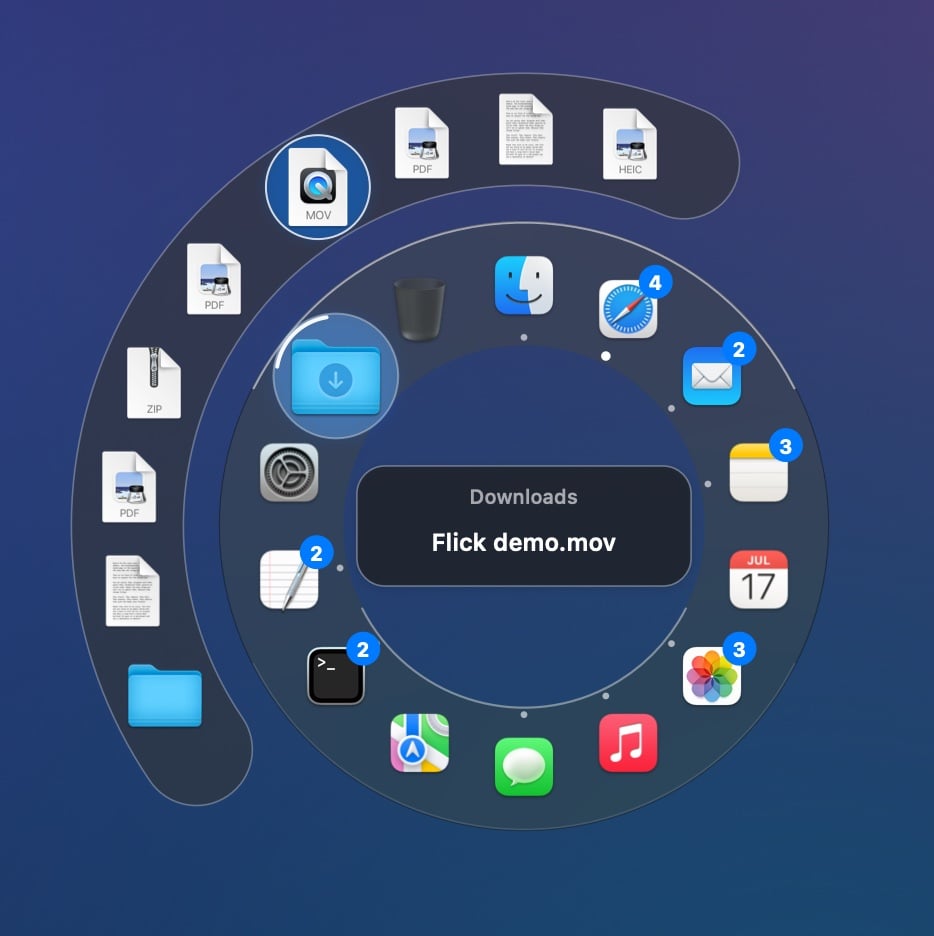
With Settings → Apps → Folders and Trash on (the default), your Dock’s folders (or the ones you pinned) and the Trash come after the apps, as in the Dock. They always stay on the ring, even when there are too many apps to fit.- Point at a folder and its 11 newest files fan out beyond the ring, with Open in Finder. Pick a file to open it. The first time, macOS may ask whether Beckon can read that folder.
- Pick the Trash to open it in Finder.
The Dock’s right-click menu
Right-click an app on the ring for the menu the Dock gives you, in the Dock’s order:- The app’s windows: ✓ marks the main one, ◆ a minimized one. Pick one to bring it up.
- The app’s own commands, such as New Window, New Private Window or New Tab.
- Options: Keep on Ring or Remove from Ring (with your own pinned list), and Show in Finder.
- Show All Windows: all the app’s windows, spread out (App Exposé).
- Hide and Quit. Hold ⌥ and Quit becomes Force Quit.
Drop files on apps, folders and the Trash
1
Start dragging a file
From Finder, the desktop, or any app that lets you drag files.
2
Press the shortcut
The ring opens around the pointer and stays open while you drag, even if you let go of the
shortcut.
3
Drop it
- On an app (or one of its windows): the file opens with that app.
- On a folder: the file moves in. From another disk it’s copied, and if a file with that name is already there, the new one is renamed rather than replacing it.
- On the Trash: the file moves to the Trash.
Hide the macOS Dock
Turn on Settings → Apps → Hide the macOS Dock and the Dock stays out of sight, so the ring can take its place.- macOS doesn’t let apps turn the Dock off, so Beckon sets it to hide automatically with a very long delay: it never slides up by itself. Mission Control, Launchpad and ⌘Tab keep working.
- The Dock briefly redraws when you turn this on or off.
- Your own Dock settings are saved first and put back exactly when you turn the switch off or quit Beckon. The switch stays on, so the Dock hides again the next time Beckon opens.
- If your Pro trial ends, the Dock comes back at once. Unlock Pro and it hides again.
Getting the Dock back by hand
Getting the Dock back by hand
If you deleted Beckon while the Dock was hidden, open Terminal and run:If you used to have the Dock hide automatically, use
-bool true instead.What the Dock does that Beckon can’t
A few things only the Dock can do, because macOS keeps them private:- Recent documents in an app’s menu (reading them needs Full Disk Access).
- Red notification badges on app icons.
- Emptying the Trash from the ring (open it in Finder instead).
- Options → Open at Login for other apps.
- Windows on other Spaces, and full-screen windows, in the window list.