

1. Install Beckon
1
Download it
Get Beckon from withbeckon.app.
2
Move it to Applications
Open Beckon.dmg and drag Beckon into the Applications folder.
3
Open it
Open Beckon from Applications. macOS asks once whether to open an app downloaded from the
internet; choose Open.
2. The welcome guide
The first time Beckon opens, a short guide walks you through it. It stays above other apps while it’s open, so you can switch away to try the ring and come back.- Welcome: what Beckon does, with your own apps.
- Try it: a checklist that ticks itself as you open the ring, switch apps and keep the ring open.
- Permissions: Accessibility and Screen Recording, what each is for, and an Allow button for each. Both are optional. See Permissions.
- Make it yours: open at login, which apps the ring shows, hiding the Dock, and middle-click. Nothing here is switched on for you.
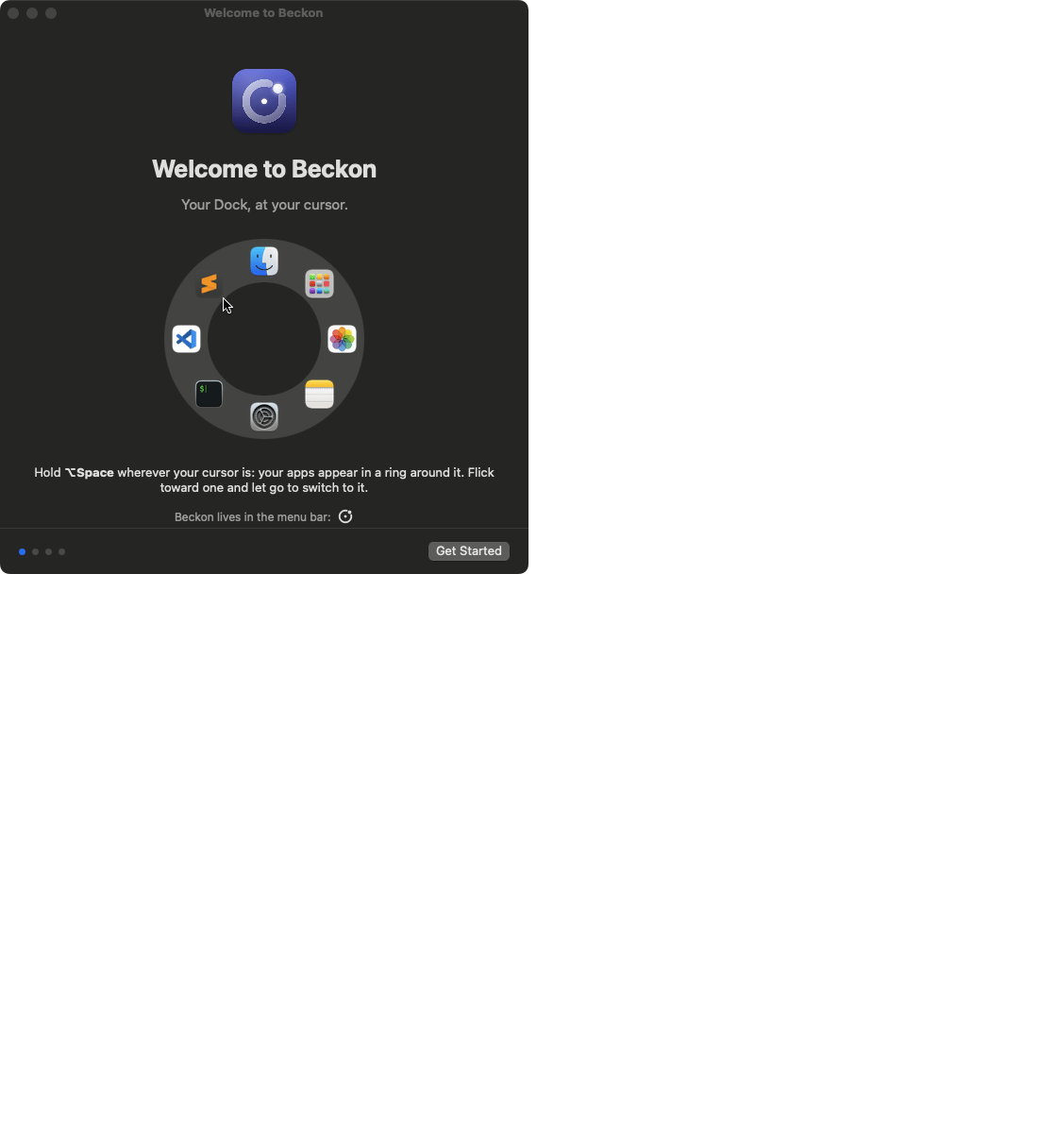
The welcome guide's first step.
3. Your first flick
1
Hold ⌥Space
Anywhere on screen. Your apps appear in a ring around the pointer.
2
Flick toward an app
Move a little toward the app you want. Only the direction counts, so you don’t have to land
on the icon. The app you’re heading for grows, and its name shows in the middle.
3
Let go
You’re there. To cancel instead, let go without moving, or come back to the middle first.
If ⌥Space does nothing, another app may already use it (Raycast, Alfred and the ChatGPT app all
do by default). Beckon warns you when it spots one. Pick another shortcut in Settings → General, or use the middle mouse button. See
Troubleshooting.
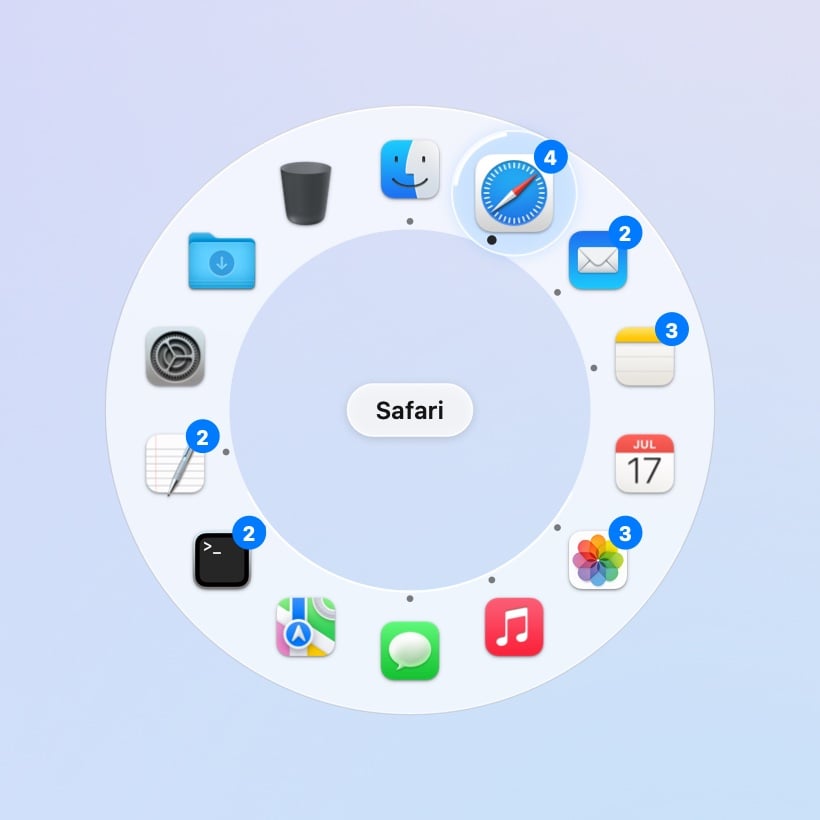
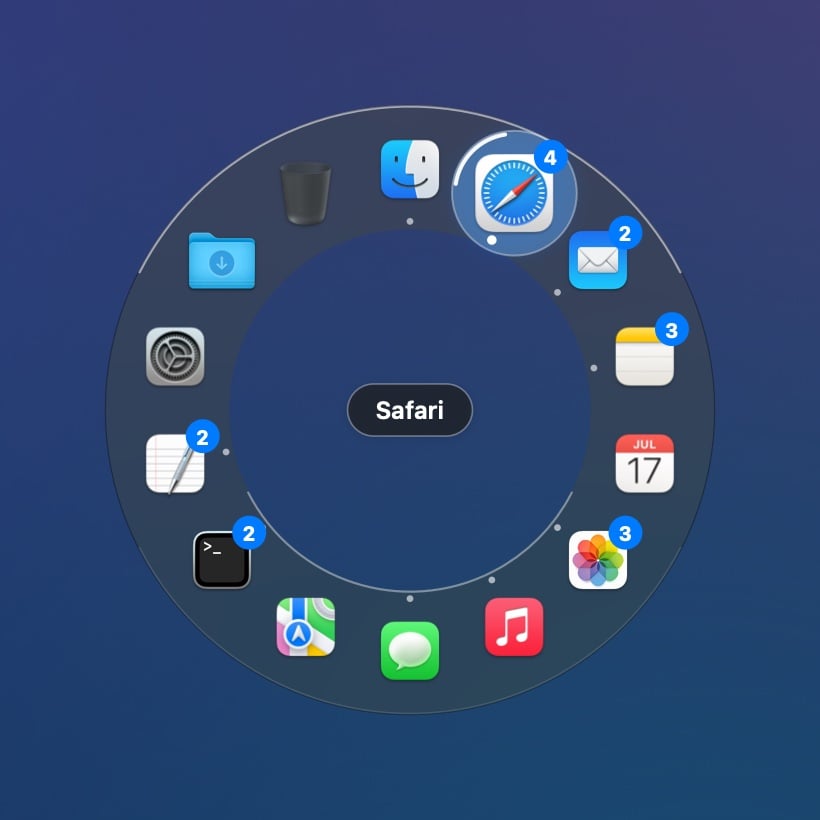
The app you're heading for grows, and its name shows in the middle.
4. No keyboard? Use the middle button
Press the middle mouse button (or the scroll wheel) to open the ring, the same way: hold and flick, or click and let go to keep it open. With Accessibility allowed, Beckon keeps that click from reaching the app under the pointer. You can turn this off in Settings → General.Next
The ring
Everything about opening, picking and closing.
Windows
Go straight to the window you want.