

General
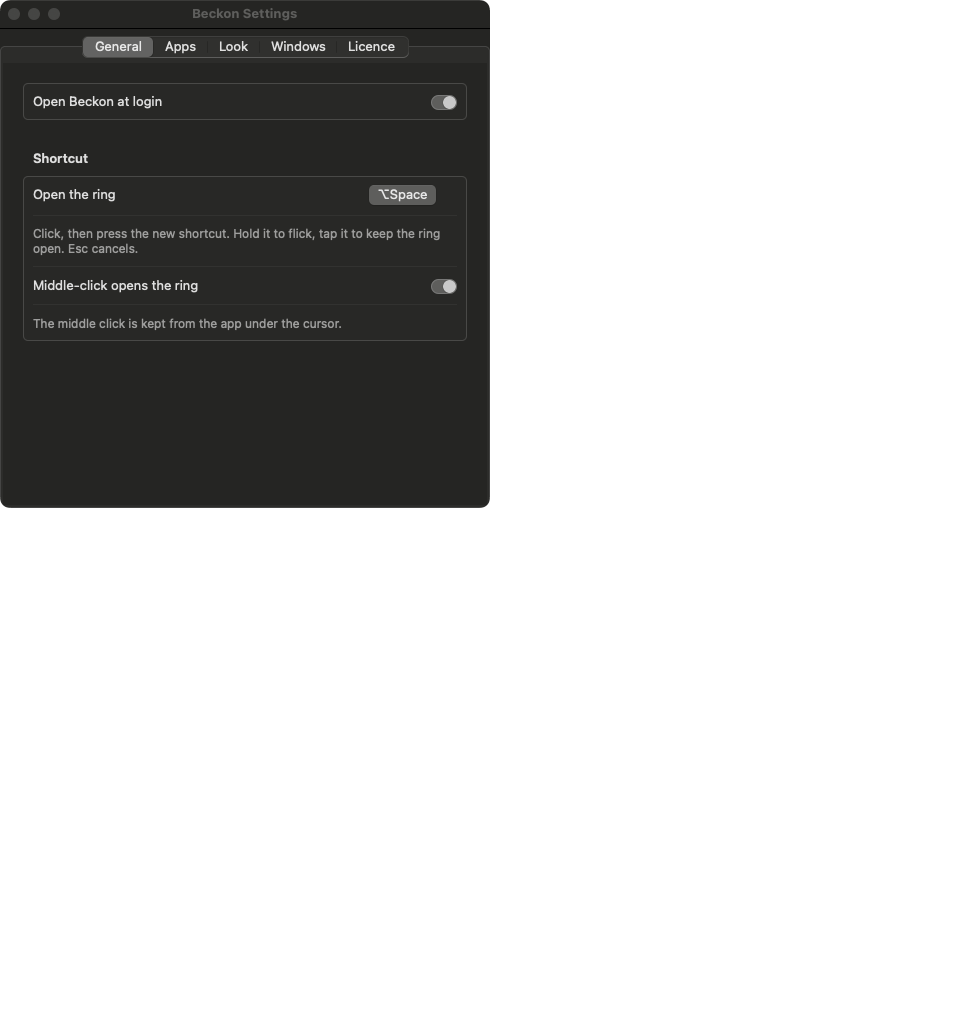
If another app already uses the keys you press, Settings says so and keeps your previous
shortcut.
Apps
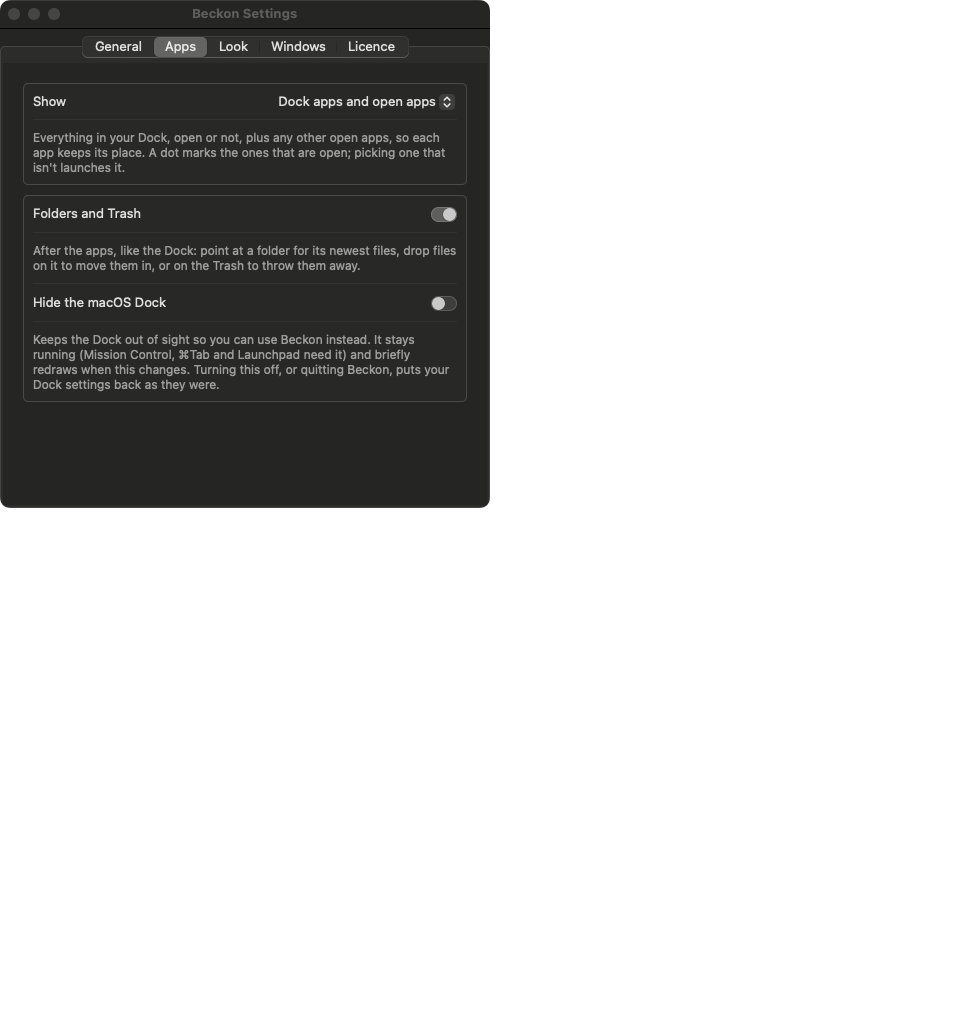
More in Replace the Dock.
Look
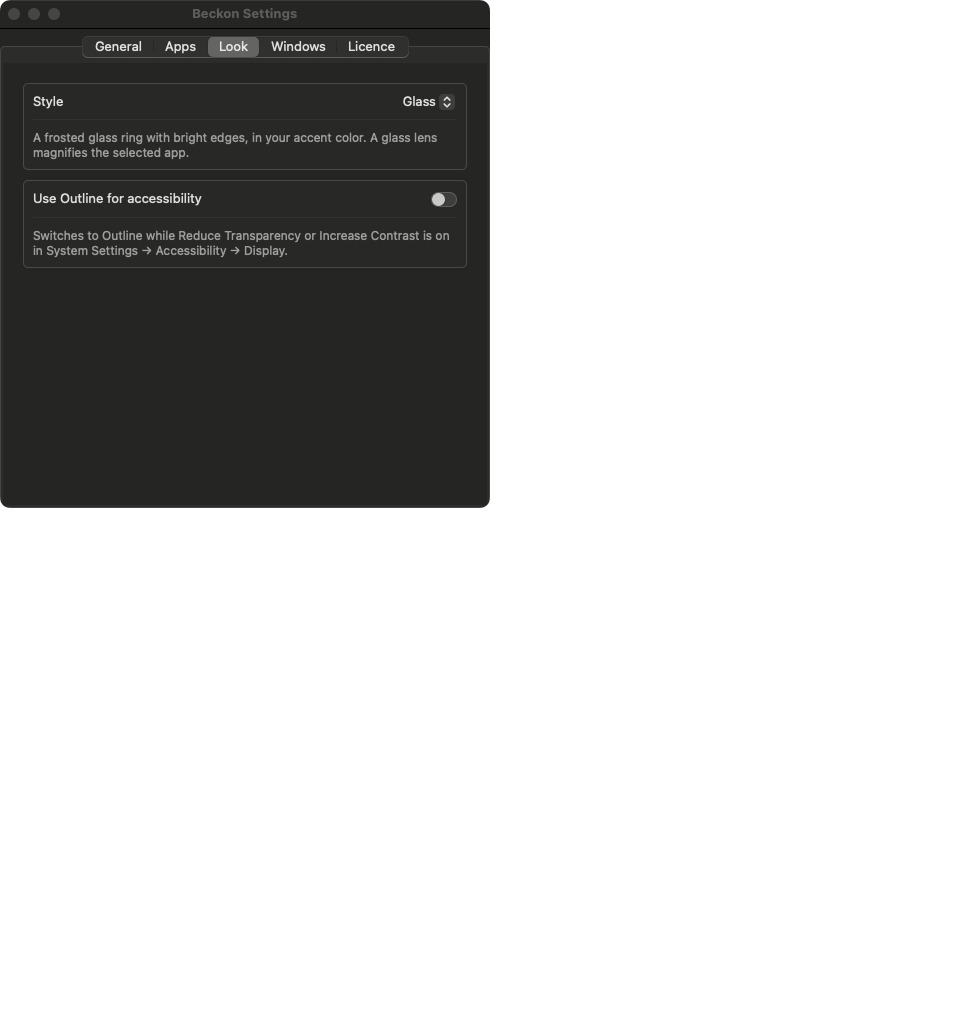
More in Looks.
Windows
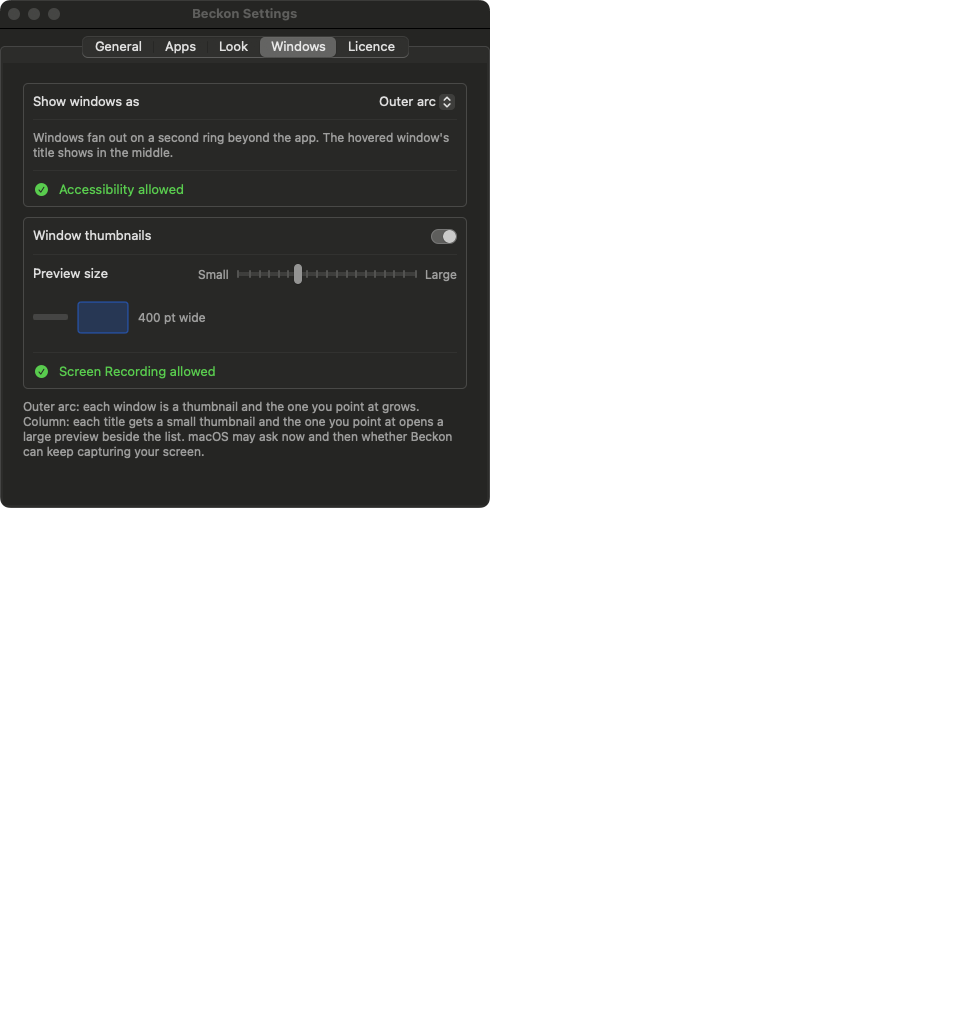
This tab also shows whether Accessibility and Screen Recording are allowed, with an Allow…
button for each. More in Windows and Permissions.
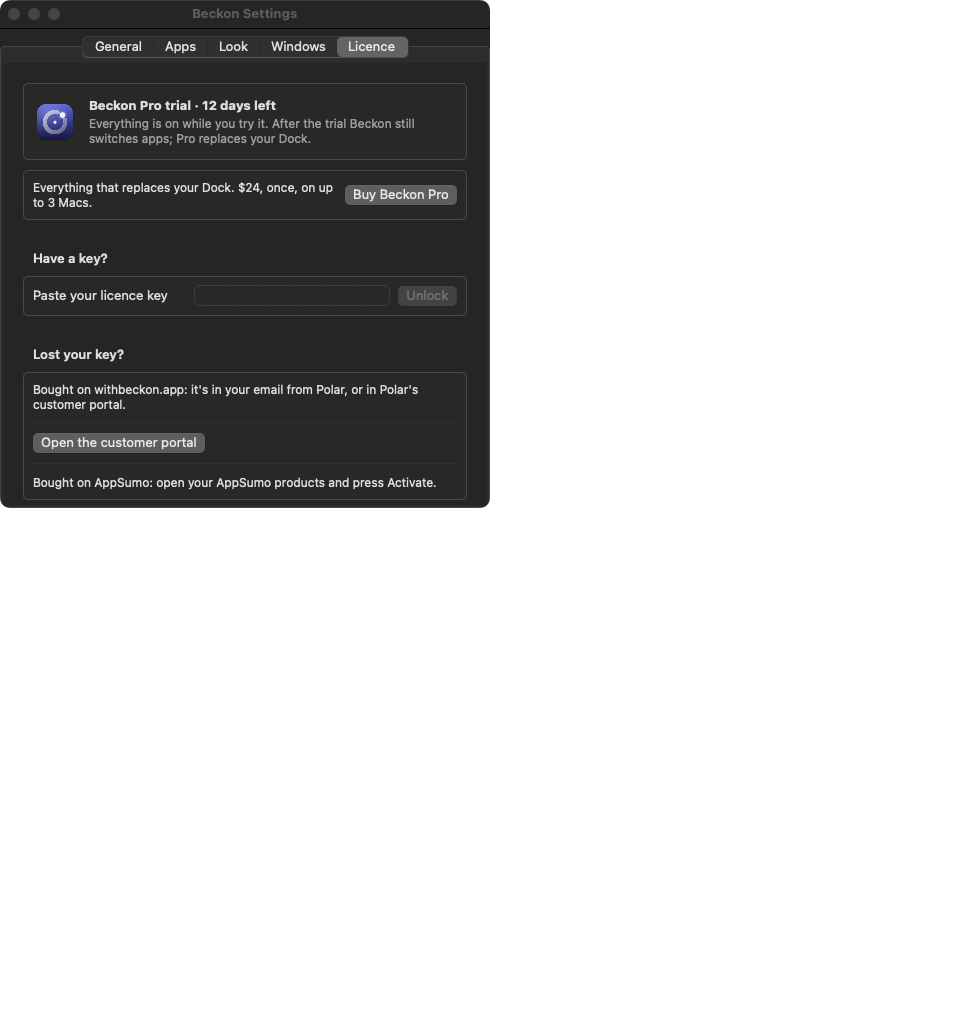
Licence
The menu bar menu
Click the Beckon icon in the menu bar for:- A reminder of the shortcut: hold to flick, tap to keep the ring open.
- Show Ring: opens the ring at the pointer, for a click.
- Settings… and Welcome Guide…
- Check for Updates…: looks for a newer version now.
- Your licence: Pro trial · N days left, Unlock Beckon Pro… or Beckon Pro.
- Quit Beckon. If Beckon was hiding the Dock, the Dock comes back.