

Open it
The ring opens around the pointer, wherever it is. Near the edge of a screen it shifts just
enough to stay on screen.
You can change the shortcut in Settings → General. See Settings.
Pick an app
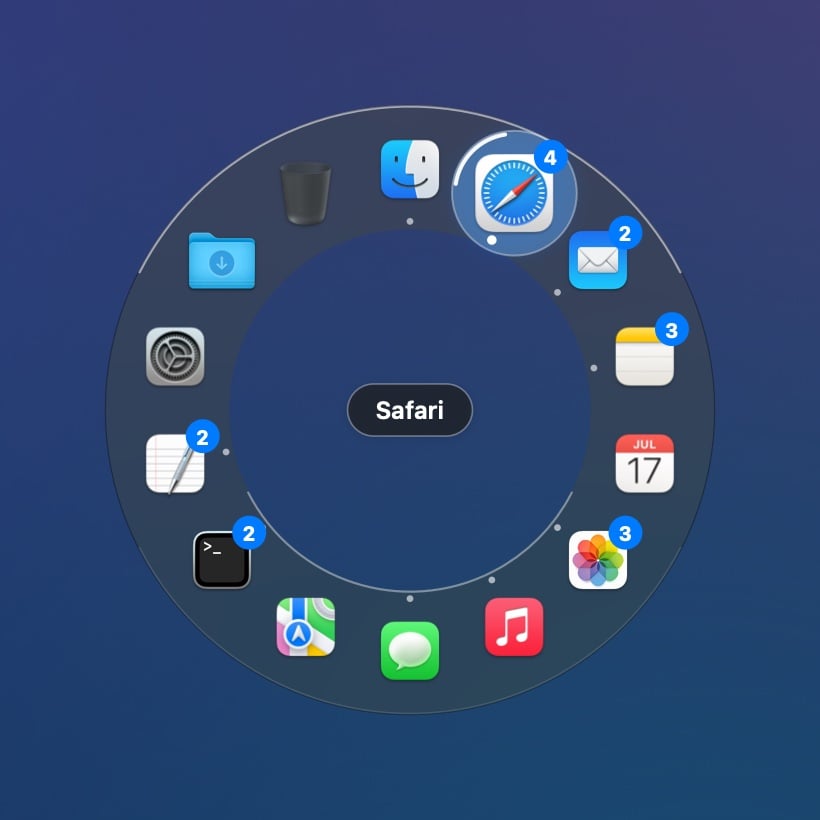
Beckon picks by direction: the app in the direction you move from the ring’s middle is the one you get. A short flick, about the size of a fingertip, is enough. You don’t have to land on the icon. The app you’re heading for grows, a short marker on the ring points at it, and its name shows in the middle. That’s what letting go will pick.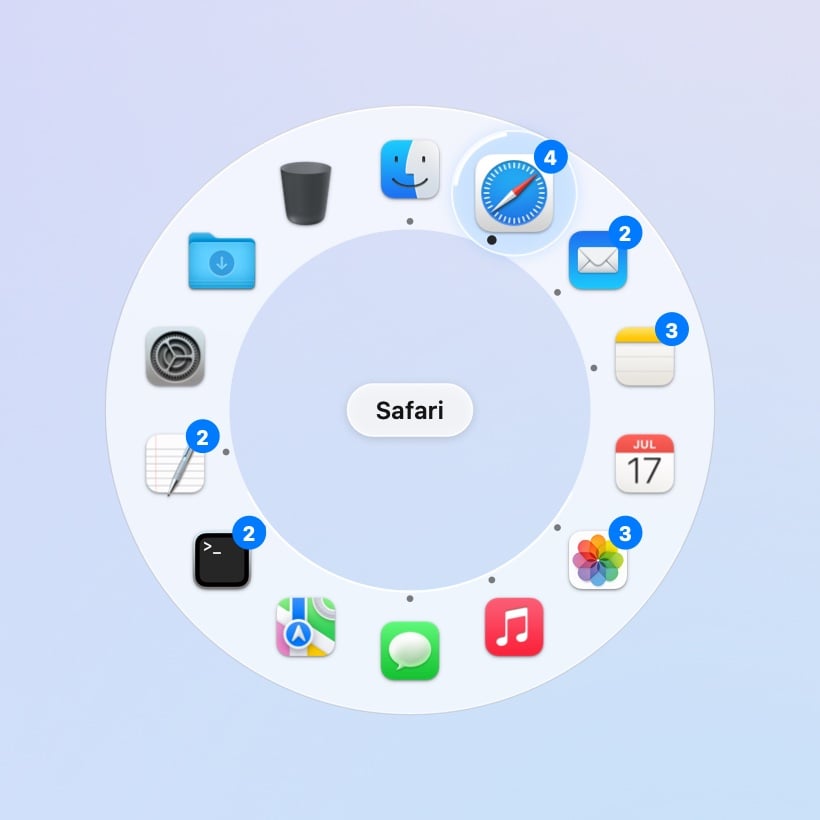
Close it without switching
- Holding: let go without moving, or move back to the middle first.
- Kept open: press Esc, click anywhere outside the ring, or press ⌥Space again.
With the ring open
What’s on the ring
- Order: Finder is always at 12 o’clock. Your Dock’s apps follow clockwise in Dock order, then any other open apps, newest last. Apps keep their places, so after a few days your hand learns the directions.
- Running apps have a small dot on the inside of the ring, as in the Dock. The frontmost app’s dot is brighter. Apps without a dot are in your Dock but closed.
- Window counts: an app with two or more windows has a badge with the number. See Windows.
- Folders and the Trash come after the apps, as in the Dock (Pro).
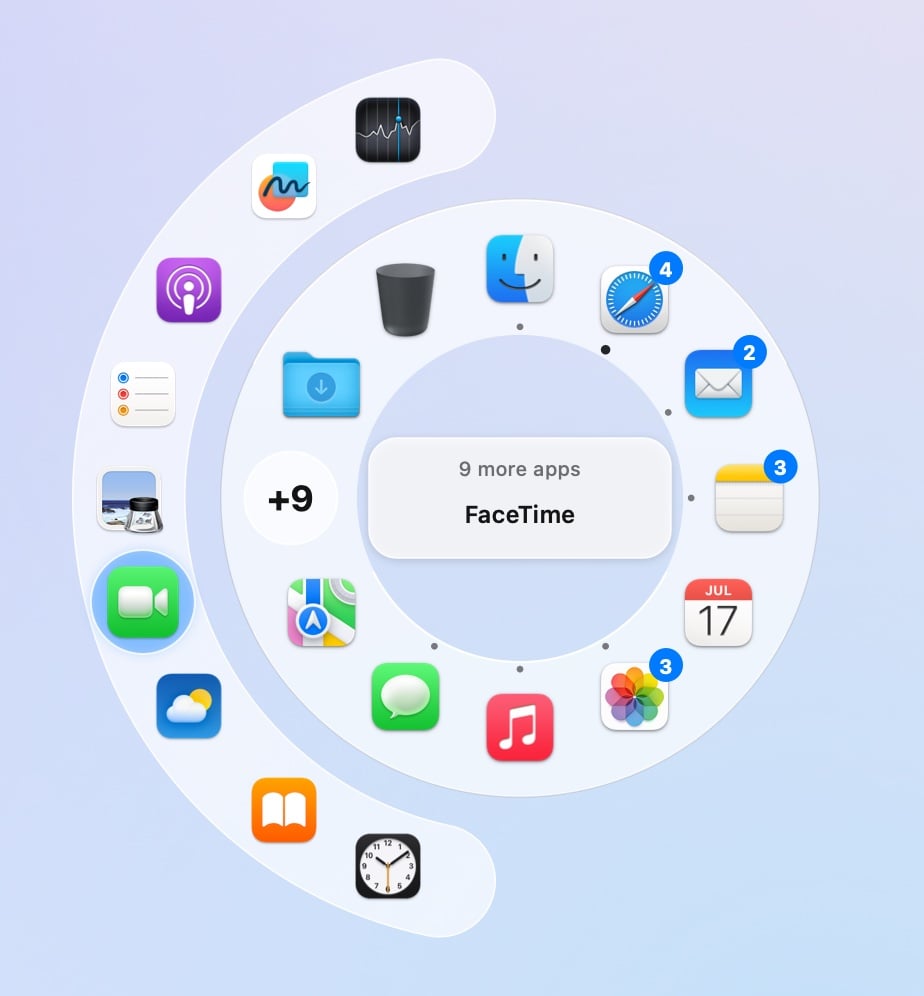
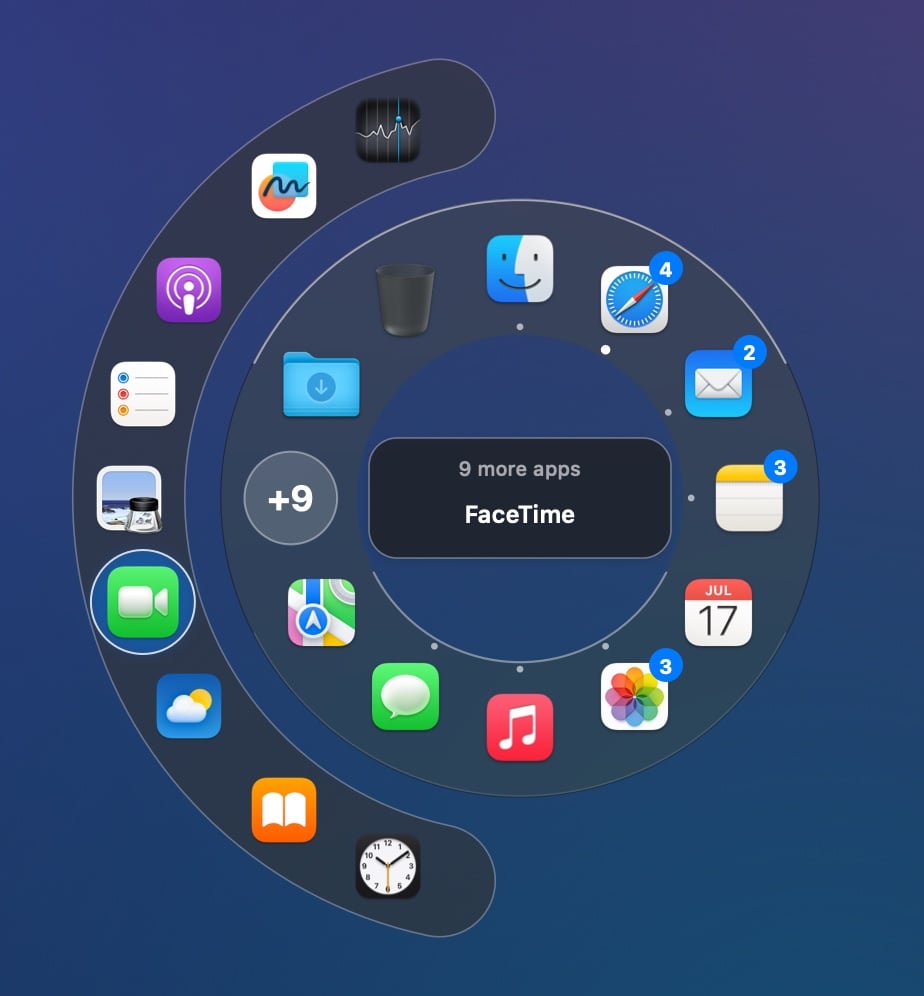
- More than 24 apps: the last slot becomes +n. Point at it and the rest fan out beyond the ring.
Switching works like the Dock
Picking an app does what clicking it in the Dock would: a hidden app comes back, an app with no windows opens a new one, and an app that isn’t running launches.With Reduce Motion on (System Settings → Accessibility → Display), the ring appears without
its short opening animation.