How to put websites in the Mac Dock
Three ways to keep the websites you use every day in the Dock, as web apps or links, what each one is like, and a way to keep them a flick away instead.
 David OtiFounder, Beckon
Some websites are really apps: your mail, your calendar, Figma, Notion, the dashboard you check twenty times a day. Keeping them in the Dock next to your other apps makes sense. macOS doesn’t make it obvious, but there are three ways.
1. Safari: Add to Dock
On macOS Sonoma or later, open the site in Safari and choose File → Add to Dock…. Check the name and the icon, and click Add. You get a web app: its own icon in the Dock and Launchpad, its own window without Safari’s toolbar, and a place in ⌘Tab like any other app. Links to other sites open in Safari.
Web apps are kept in the Applications folder in your home folder. To remove one, drag it out of the Dock and delete it from there.
2. Chrome or Edge: install the site as an app
In Chrome, open the site, click the ⋮ menu, then Cast, save, and share → Install page as app…. In Edge it’s Apps → Install this site as an app. Either way you get an app with its own window, which you can keep in the Dock like any other.
3. Drag the link to the Dock
Works with any browser. Drag the address from the address bar to the right-hand side of the Dock, next to Downloads and the Trash, and let go. It stays there as a link and opens in your default browser. They all get much the same icon, so more than two or three are hard to tell apart.
The catch
Every one of these makes the Dock longer. Add five sites to twenty apps and the icons get smaller, and they’re still at the bottom of the screen, the longest trip the pointer makes.
Websites on the ring, with Beckon
Beckon brings the Dock to the pointer instead: hold ⌥Space or press the middle mouse button, and your apps appear in a ring around it. Websites, Shortcuts and files can sit on the ring next to your apps, and you flick to them like anything else.
- From the address bar: start dragging the link, press ⌥Space, and let go in the ring’s middle. It’s added with the site’s own icon.
- From the clipboard: copy the address, then right-click the ring’s middle and add it.
- From Settings: Apps → Also on the ring → Add Website…
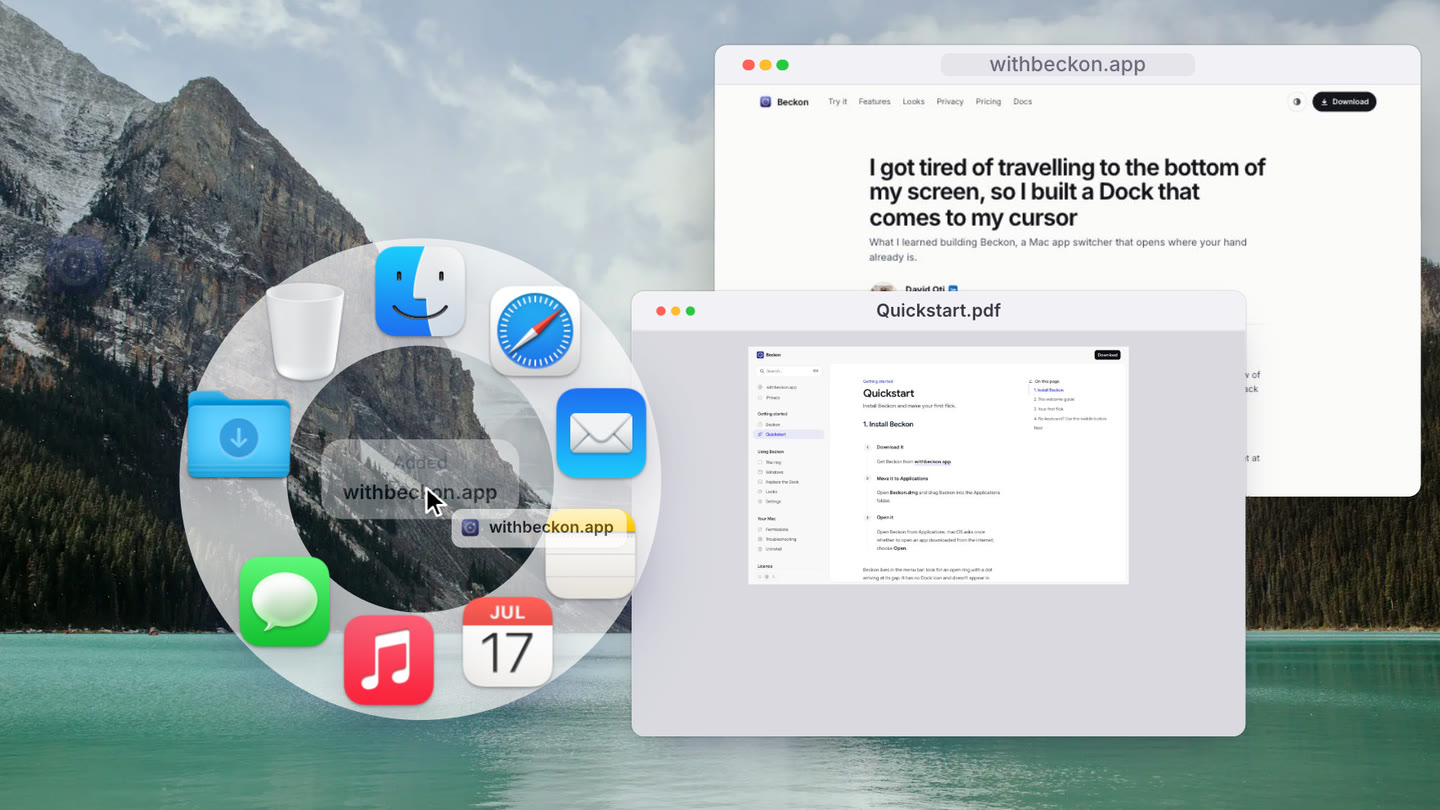
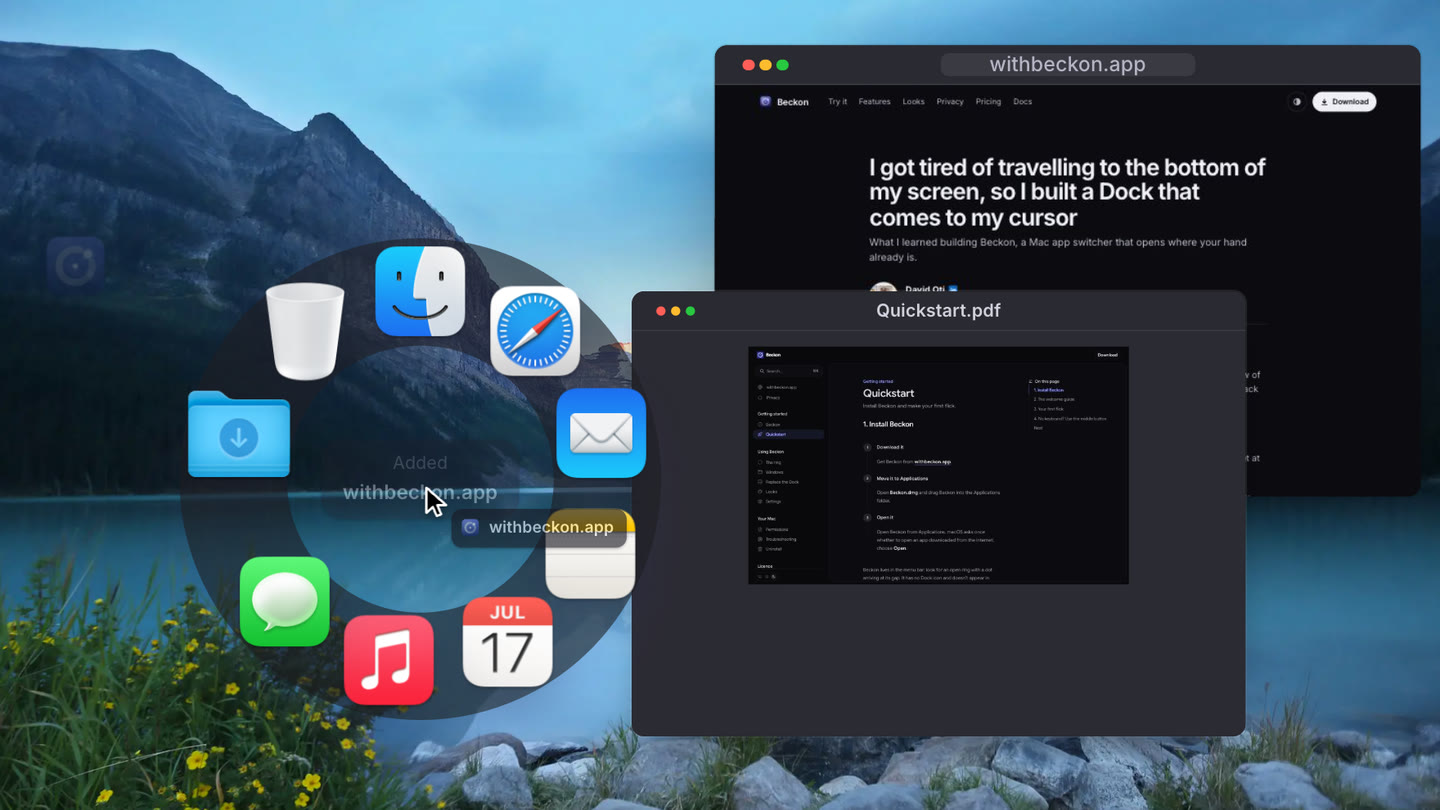
Picking a site opens it in your default browser. And for things that go together, there are collections: one slot on the ring for, say, your “Design” sites, apps and files. Reach it and they fan out beyond the ring, like a folder. Right-click the ring’s middle for New Collection…, name it, and drop things on it. Collections keep the ring short however much you put on it.
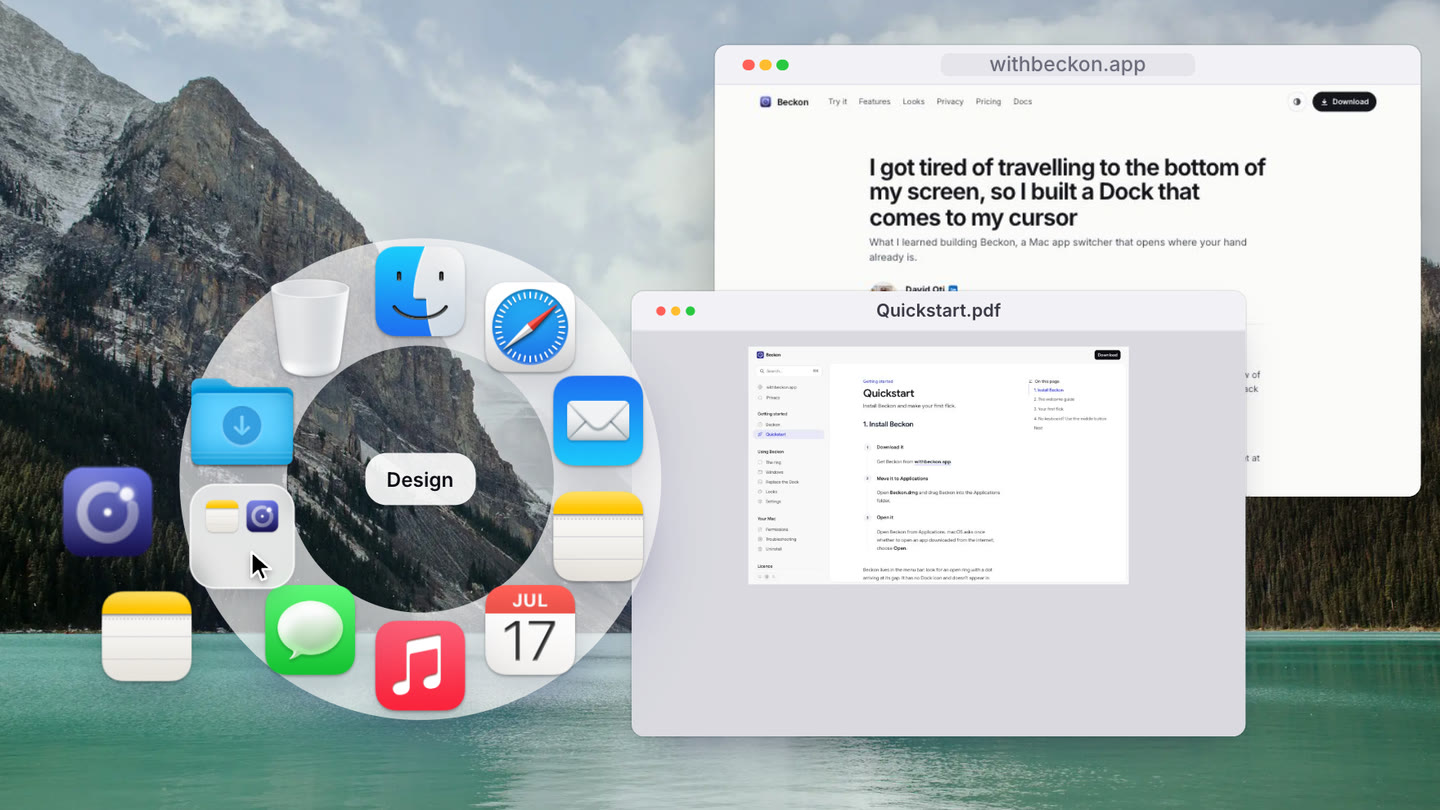
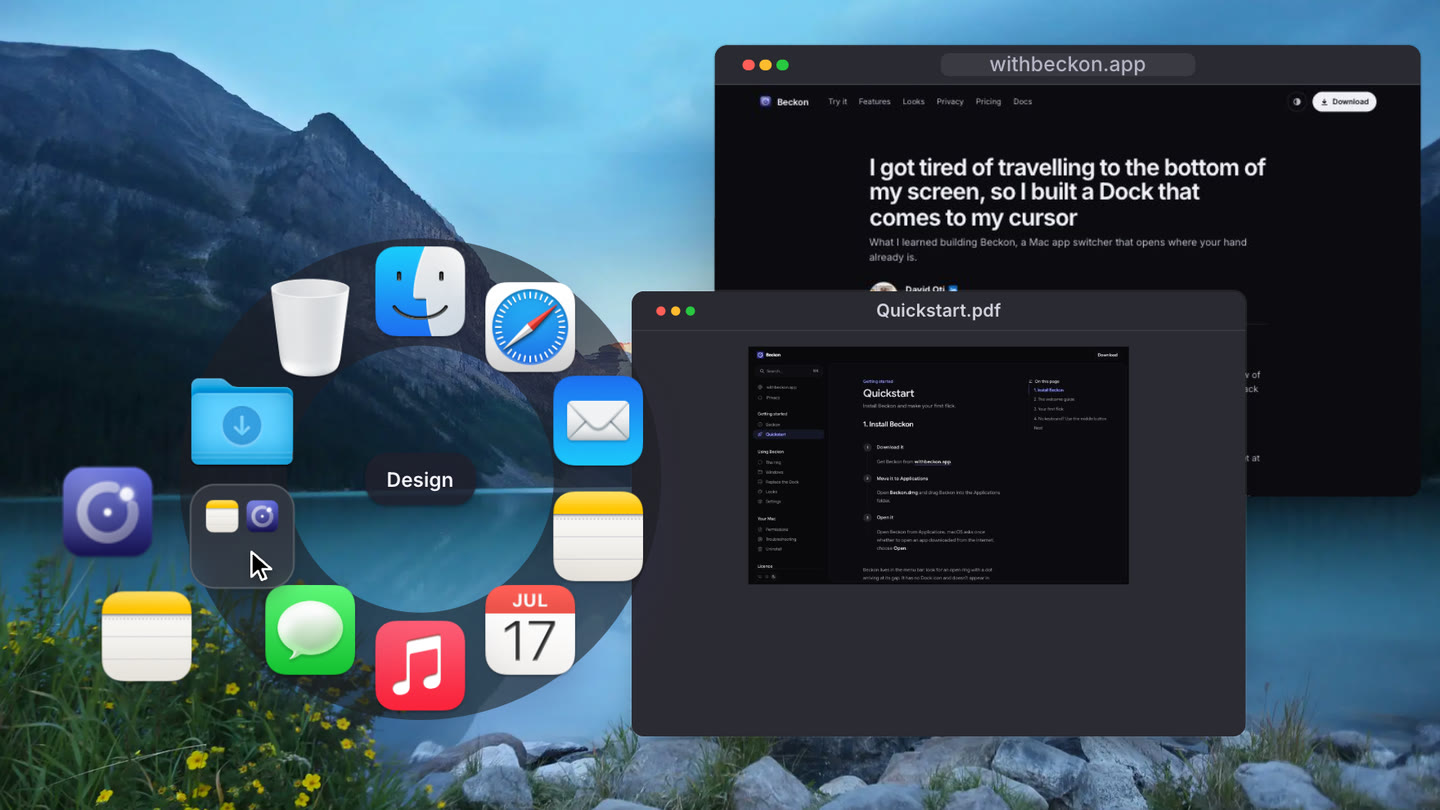
If you’d rather keep Safari’s web apps, they’re apps, so they’re on the ring too, in your Dock’s order. Websites, Shortcuts, files and collections are part of Beckon Pro, which is $24 once, and every download starts with 14 days of Pro. The details are in the guide.
More
- How to convert HEIC to JPEG on a Mac
- How to compress a video on a Mac without uploading it
- How to blur faces and hide text in photos and videos on a Mac
- A Mac Dock alternative that comes to your cursor
- How to hide the Dock on a Mac (or make it disappear for good)
- How to switch apps on a Mac without the keyboard
- How to switch to a specific window on a Mac (6 ways)
- Beckon, ⌘Tab, AltTab or Raycast: which app switcher for Mac?
- Why I built Beckon