How to compress a video on a Mac without uploading it
Make a video small enough to email or share with what’s already on your Mac or free apps, so the file never leaves your computer. And how to hit a file size.
 David OtiFounder, Beckon
A few minutes of screen recording can easily be hundreds of megabytes. Too big for an email (Gmail stops at 25 MB), too big for most chat apps, slow to upload anywhere. Search for how to compress a video and most results are websites that want you to upload it to them first: a long wait for a big file, and not something you want to do with a recording of your screen or your family.
Here’s how to make a video smaller without it leaving your Mac.
What makes a video smaller
Three things: fewer pixels (1080p instead of 4K), a more efficient codec (HEVC instead of H.264), and fewer bits per second, at some cost in quality. The free tools below let you choose the first two. Choosing an exact file size is harder; there’s a way at the end.
QuickTime Player
Open the video and choose File → Export As, then a resolution like 1080p or 720p. Only sizes up to the original’s are offered, and where there’s a choice, Smaller File Size (HEVC) makes it smaller still. A 4K recording exported at 1080p is usually a fraction of the size. Simple, but you choose the resolution, not the size.
Finder: Encode Selected Video Files
The same export for a batch. Select the videos in the Finder, right-click, and choose Encode Selected Video Files (under Services if it isn’t at the bottom of the menu). Pick a setting such as 1080p or 720p, and HEVC for a smaller file. The new files are saved next to the originals.
iMovie
If you have iMovie (it’s free), put the clip in a project and choose File → Share → File…. You pick a resolution and a quality, and it shows the size the file will be before you save. A heavy way to do a light job, but it works.
HandBrake
HandBrake is a free, open-source video converter. Its presets, like Fast 1080p30, usually cut a video to a fraction of its size with little visible loss, and it can work through a whole queue. It has hundreds of settings, which is great if you want them.
Hitting a file size
If it has to fit under a limit, work out the bit rate: the size in megabits divided by the length in seconds. 25 MB is 200 megabits, so a two-minute video in 25 MB is 200 ÷ 120, about 1.6 Mbit/s for picture and sound together. Give HandBrake a little less than that under Video → Avg Bitrate (it takes kbit/s, so about 1400, leaving room for the sound).
For files that are just too big for email, Apple Mail’s Mail Drop sends a link instead of the attachment, for files up to 5 GB, if you use iCloud.
Compress it on the way, with Beckon
I wanted this to be one movement, so it’s in Beckon. Beckon puts your Dock in a ring around the pointer, and when you’re dragging files, the ring has two more slots: Convert and Actions. Drag the video, press ⌥Space, point at Actions and drop it on Compress.
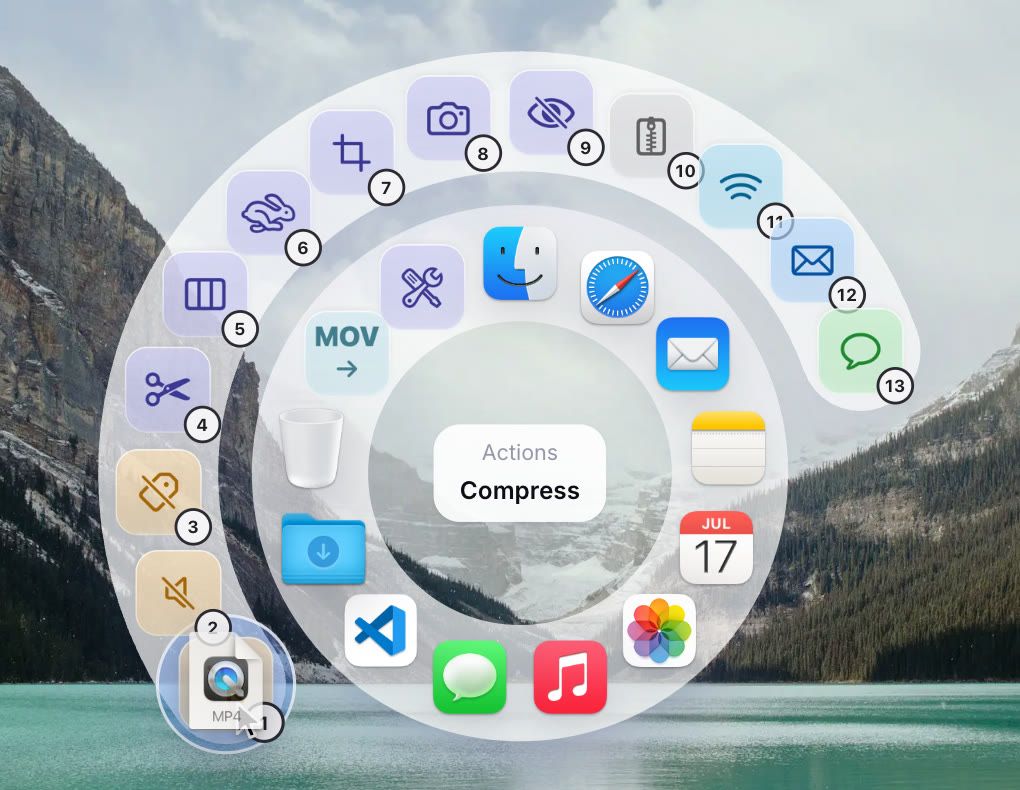
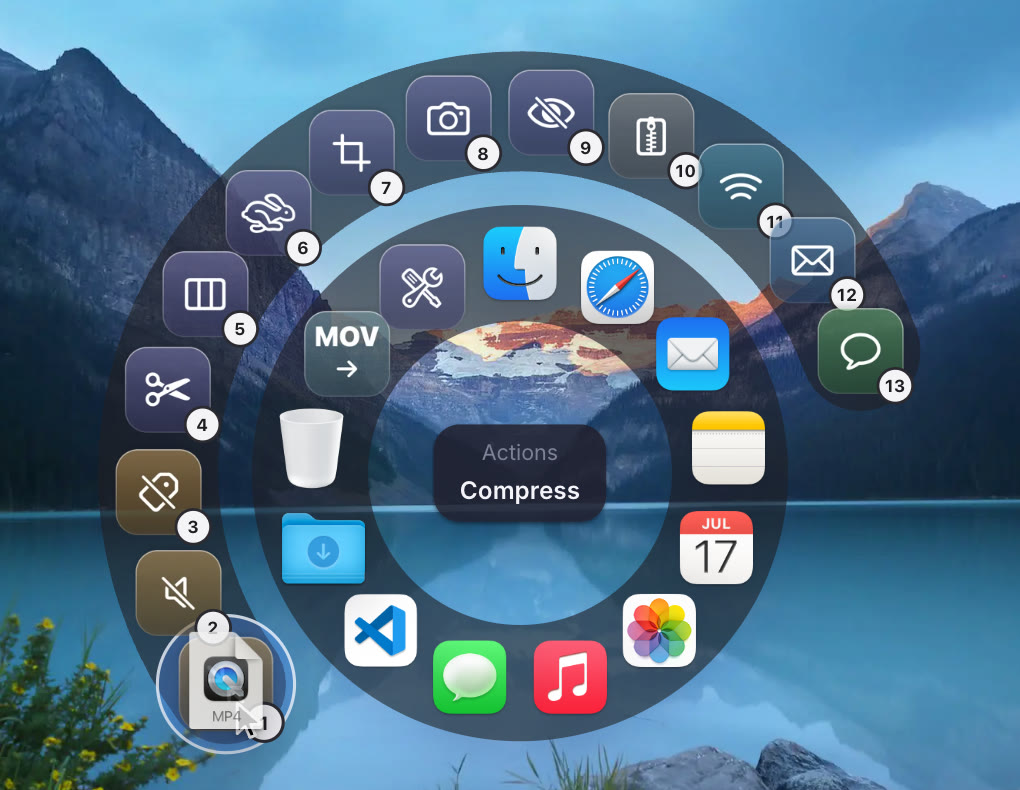
A small window opens with three ways to say how small:
- Preset: High (1080p), Medium (720p) or Small (480p).
- File size: type “about 25 MB” and it’s met with the best quality that fits. The arithmetic above, done for you.
- Percentage: a quarter of the size, half, whatever you need.
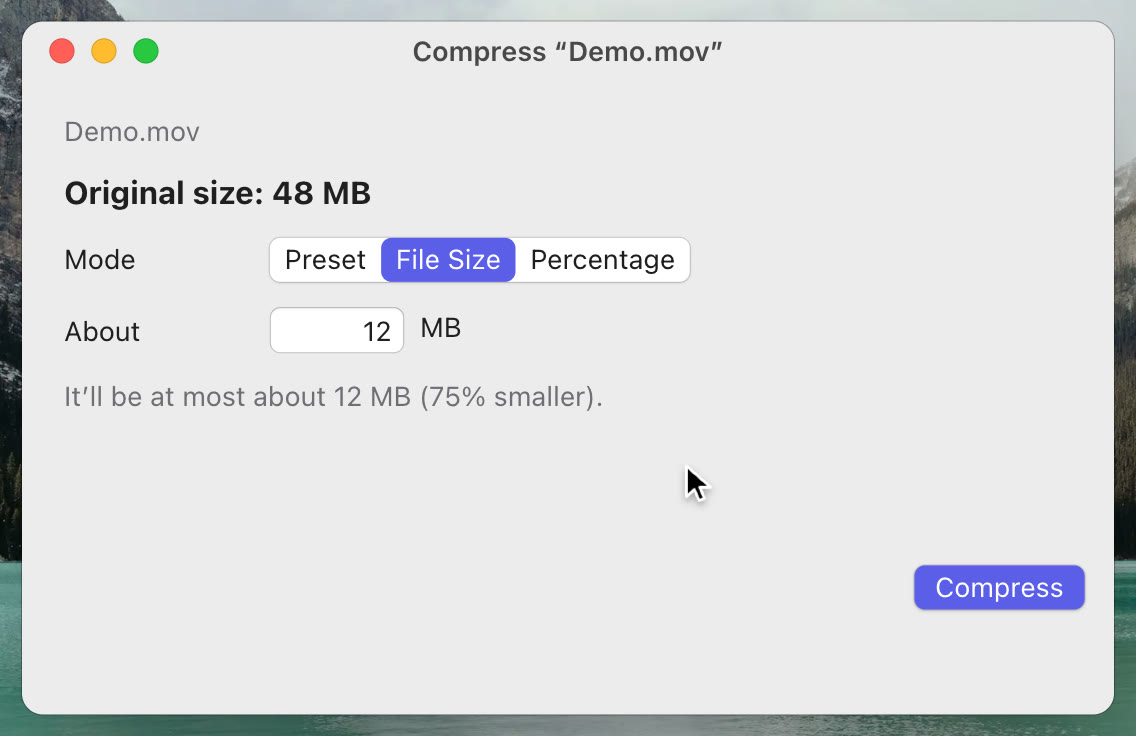
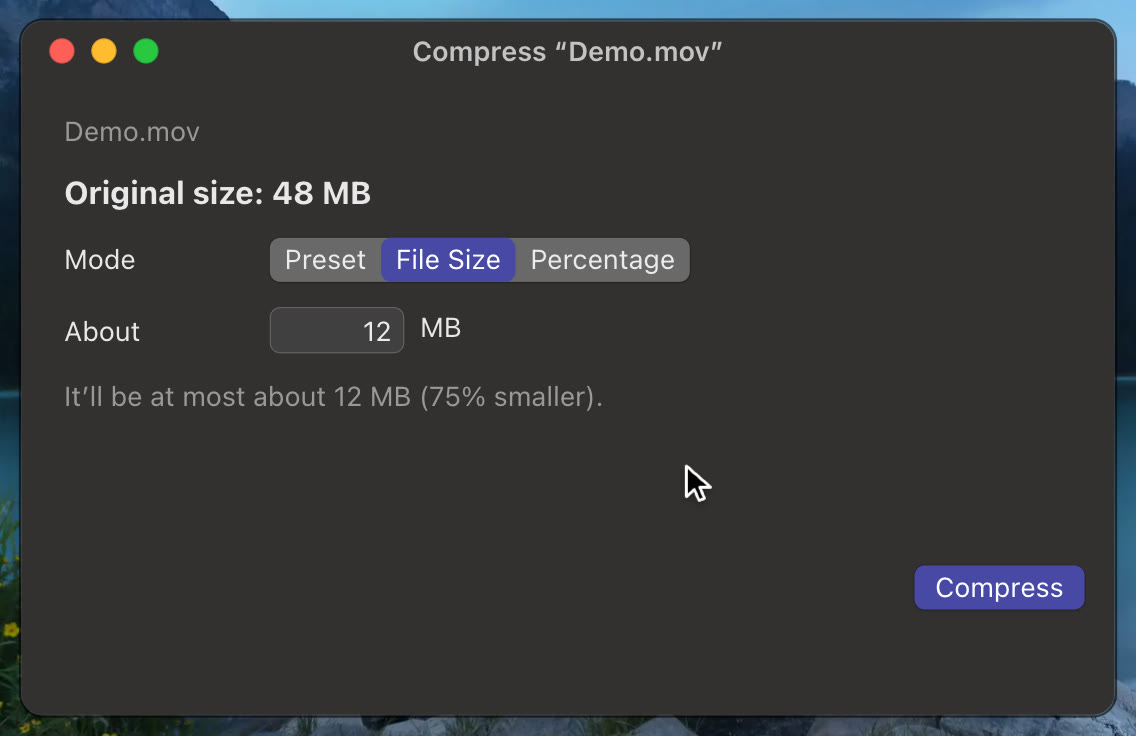
It saves an MP4 and leaves the original as it was, in Downloads → Beckon, which is on the ring, so the small one is a flick away when you attach it. It takes several files at once, and photos too (as JPEG or HEIC). It all runs on your Mac.
Compress is part of Beckon Pro, which is $24 once. Every download starts with 14 days of Pro, so you can try it on the video that’s too big right now. Trim, split, crop, speed and redact are a drop away too: see the drop actions guide.
More
- How to convert HEIC to JPEG on a Mac
- How to put websites in the Mac Dock
- How to blur faces and hide text in photos and videos on a Mac
- A Mac Dock alternative that comes to your cursor
- How to hide the Dock on a Mac (or make it disappear for good)
- How to switch apps on a Mac without the keyboard
- How to switch to a specific window on a Mac (6 ways)
- Beckon, ⌘Tab, AltTab or Raycast: which app switcher for Mac?
- Why I built Beckon